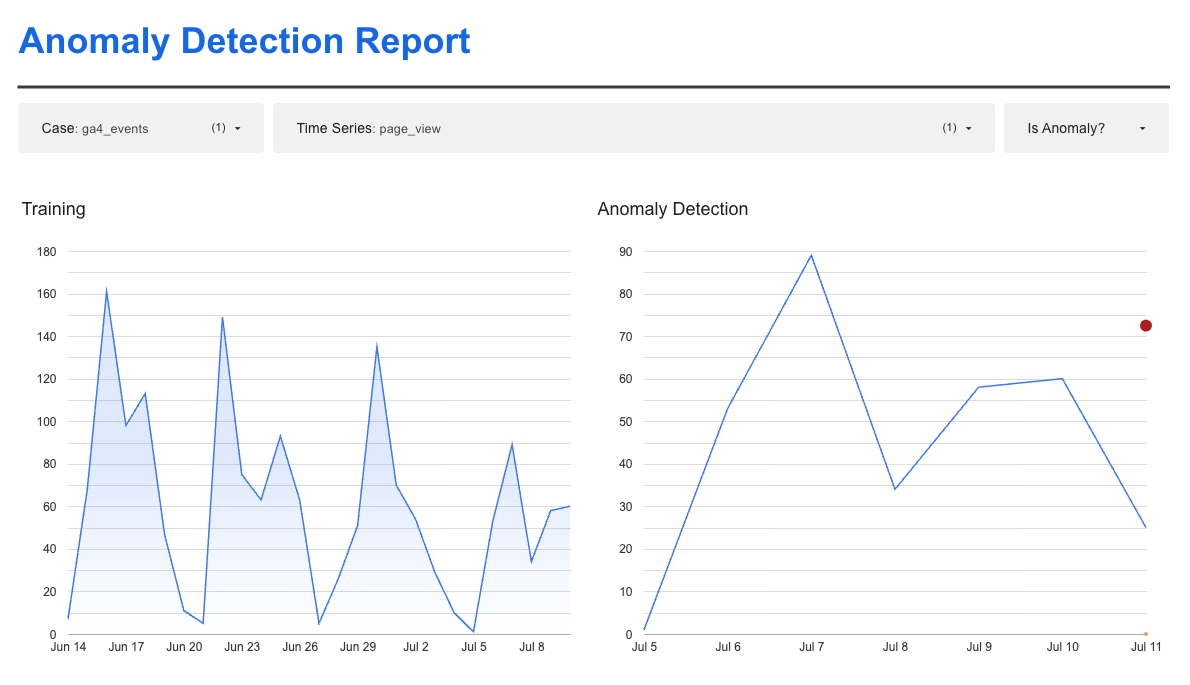
We have something new for you, a dashboard!
When installing the GA4Dataform repository in your GCP project, you have received two ready-to-use reporting tables:
-
- the
demo_daily_sessions_reporttable
- the
-
- the
demo_diagnosticstable
- the
For the Daily Sessions table there is a dashboard already – generously provided by Mehdi Oujida (check out his blog if you’re into Data Studio, highly recommended).
And now we have a dashboard for the Diagnostics table, too!
Prerequisite: have GA4Dataform installed – obviously
Go to our Get Started with GA4Dataform page to get started.
What is in the dataset and dashboard?
The Diagnostics table contains the past 64 days of your GA4 data, with useful diagnostics of some commonly used dimensions and metrics.
It can be used to quickly spot tracking errors, cardinality of host / page / campaign dimensions, etc. More details below.
How to obtain the dashboard
Here is the link to the dashboard
In the page “Template Instructions” you will find details on attaching your own data to a copy of this dashboard.
Preview it first, using your own data
If you use this preview link of the dashboard, you will see an icon “Use my own data“
Click that link, and select the demo_diagnostics table inside your superform_outputs dataset in your project.
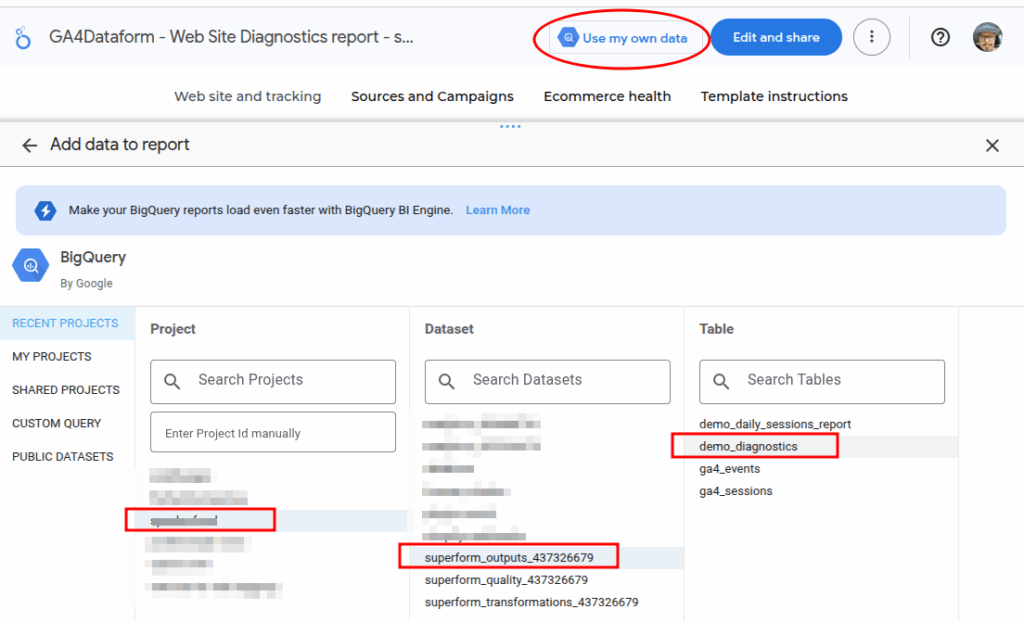
After selecting, click Add and the dashboard will load directly to your dataset. If you like it: follow the instructions on how to create a copy, so you can remove our branding and stick on your own logo.
Detailed overview of the dashboard content
The dashboard consists of 3 pages and an instructions page:
Web site and tracking diagnostics
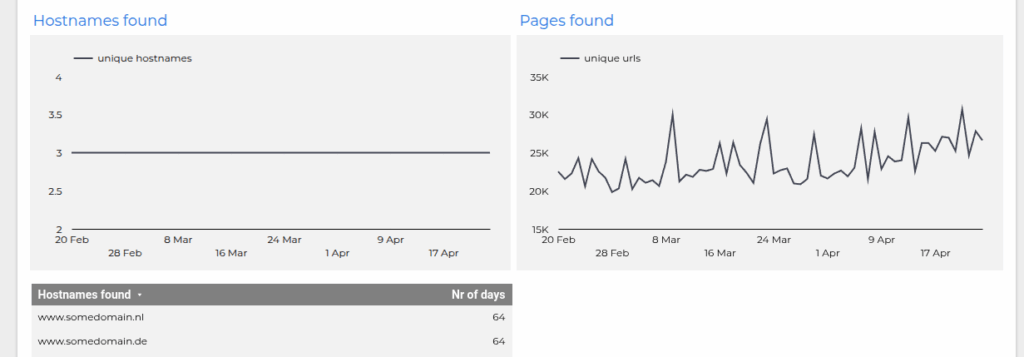
This page is a general purpose quick tagging and web site health check:
-
- From how many
If this is more than expected, you might want to use the configuration file to filter on hostname
- From how many
-
- How many unique URLs do I collect daily?
This basically thepage_locationcardinality
- How many unique URLs do I collect daily?
-
- How many % of my
session_startevents are self referrals?
A self referral is: the hostname inpage_referreris the same hostname as the page. If this is high, it might mean you have a lot of resumed sessions, or a tracking problem
- How many % of my
-
- How many of my events have no cookie?
Cookieless hits are hits received where Analytics Consent is not granted. Sites with high bounce rate and lots of new visitors will typically show a higher %
- How many of my events have no cookie?
-
- Are my ignored referral domains correctly configured?
Payment domains, own websites: you can configure this in GA4 under tag settings
- Are my ignored referral domains correctly configured?
-
- How many measurement protocol hits are coming in
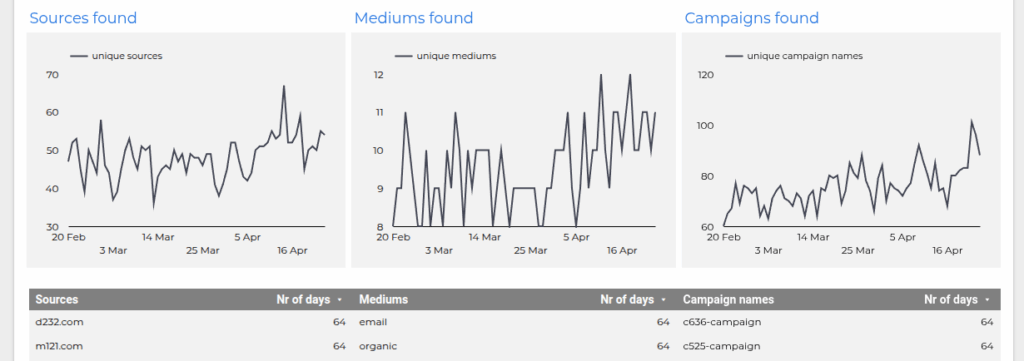
Source and Campaign information
-
- What is the cardinality for my source/medium/campaign dimensions?
Normally,mediumhas less than 20 values,campaign_namemore than that (if you are an active campaigner), andsourcesomewhere in between.
- What is the cardinality for my source/medium/campaign dimensions?
This page in the report will quickly show you if you have misconfigured utm parameters (e.g. a sudden spike in unique mediums probably indicates you have some sort of ID in there)
Ecommerce Health
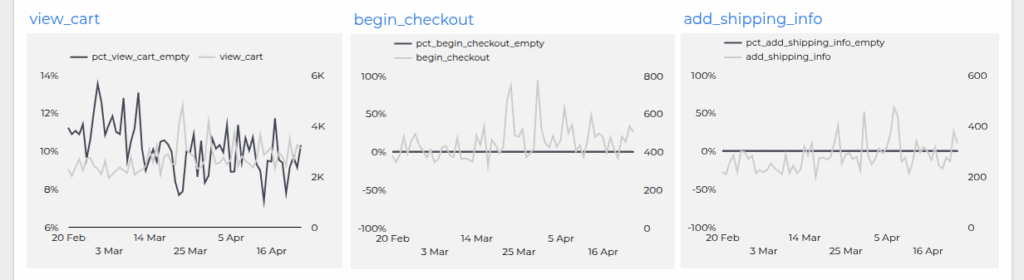
If you have an ecommerce implemention, this page will quickly show you possible ecommerce tracking problems
-
- Duplicate transaction IDs on a daily, weekly, and % weekly basis
Duplicates can happen if the transaction ID is incorrect or the tag fires twice (e.g. when the thank you page is reloaded)
- Duplicate transaction IDs on a daily, weekly, and % weekly basis
-
- Per ecommerce event, details about:
-
- % of events with no
itempayload (should be a flat zero % line) – except maybe forview_cart
- % of events with no
-
- number of hits for this event
So you can quickly spot when a line drops to zero or is flat – meaning you do not track this event (anymore)
- number of hits for this event
-
- Per ecommerce event, details about:
That’s it! Enjoy this dashboard, and if you like it: spread the word.